
Phone Number Carrier Lookup for CRM: Adding Original Carrier and Line Type Fields
Design CRM custom fields for original carrier, underlying carrier, line type and allocation region, then fill them for new records and the back catalogue.
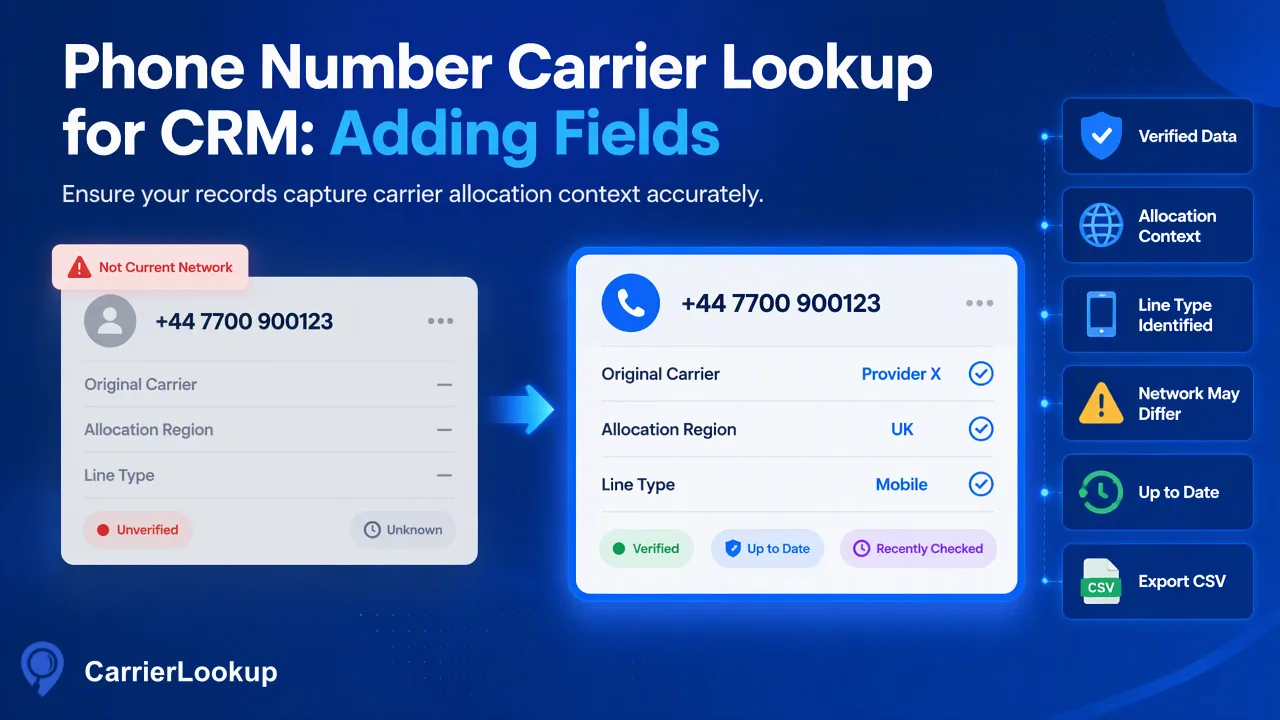
A field-design and workflow guide for CRM operations teams adding original carrier, underlying carrier, number type and allocation region to contact records with synchronous checks and file tasks.
A phone number carrier lookup for CRM adds allocation context to each contact: the carrier the number range was originally allocated to, the underlying carrier when a brand runs on another network, the number type such as mobile or fixed line, and the allocation region and city. The practical setup has three parts: create custom fields with clear names, run synchronous checks as new records arrive, and process the existing database once with a file task. Empty values should be stored as unavailable, and every field should be treated as context for grouping and review rather than proof that a contact can be reached.
Designing the CRM fields before any phone number carrier lookup
Most guides on this topic jump straight to calling an API and leave the field design to chance. Field names decide how colleagues read the data years later, so settle them first.
| CRM field label | Suggested type | Notes |
|---|---|---|
| Original carrier | Single-line text | Carrier names vary by country; a fixed dropdown fills up quickly |
| Underlying carrier | Single-line text | Often empty; only filled when a brand runs on another network |
| Number type | Dropdown | Mobile, fixed line, VoIP, other, unavailable |
| Allocation region | Single-line text | Region tied to the number range |
| Allocation city | Single-line text | City tied to the number range |
| Carrier lookup status | Dropdown | Completed, completed-empty, undetermined, not checked |
| Carrier lookup date | Date | When the lookup ran |
Use the word "original" and "allocation" in labels so nobody reads the carrier as today's network or the region as where the contact lives. In HubSpot, property field types such as single-line text, dropdown select and date picker cover all of these; Salesforce offers the equivalent through custom fields.
Preparing phone fields for the lookup
A lookup is only as good as its input. Before the first run, check how phone numbers are stored in the CRM:
- Pick one source field. Contacts often have Phone, Mobile and a free-text "other" field. Decide which one feeds the lookup, or create one lookup record per field.
- Normalize to E.164. Remove spaces and punctuation, drop national trunk prefixes, and add a plus sign and country code, for example
+447700900123. The format is defined in ITU-T E.164. - Store the normalized value separately from the original entry, so sales users still see what the contact typed.
- Remove duplicates at the number level, so one number shared by several contacts is checked once and written back to each.
- Note the country of each number from its country code. Synchronous checks do not need it, but file tasks do.
Records that cannot be normalized should keep the status "not checked" with a reason, rather than being sent and rejected.
New records: synchronous checks inside the CRM workflow
New contacts arrive one at a time from forms, imports or integrations, so a synchronous check fits best. Typical patterns:
- Workflow webhook or middleware. When a record is created or its phone field changes, your integration server calls
POST /api/v1/checkfor one number and writes the result back to the CRM fields. - Scheduled micro-batches. Every few minutes, collect new records and send 1–100 E.164 numbers to
POST /api/v1/batch-check. Results come back in input order, so match them to records by position or by the number you sent. - Manual review. An operations user can paste up to 500 numbers into the dashboard's realtime batch area for a quick spot check.
Keep the X-API-Key on your integration server; never place it in a CRM client-side script or browser extension. The public API documents a small number of shared in-flight slots and one multi request per account at a time, so queue lookups rather than firing one per record during a large import.
Existing database: one file task per country
For the back catalogue, export the normalized numbers and process them as file tasks instead of thousands of synchronous calls.
- Group by country code. A file task uses one selected country, and rows outside it are excluded, so create one export per country.
- Write one number per line in a TXT or one-column CSV, as plain digits with country code.
- Submit each file on the dashboard or with
POST /api/v1/bulk-tasks, sending the country before the file in multipart requests. - Poll
GET /api/v1/bulk-tasks/{id}no more than once every 30 seconds. - Download the CSV for each successful task and import it into the CRM, matching on the plain-digit identifier against your normalized field.
Preprocessing removes invalid rows, duplicates and numbers without a country code, and those excluded rows are not charged. Per-product limits on list size and file size apply, so check the API documentation before deciding how to split a large export. Countries whose numbers are supported only for synchronous checks, such as mainland China, Hong Kong and Macau, should go through the synchronous route instead.
Writing empty and undetermined results correctly
Three outcomes look similar in a spreadsheet but mean different things in a CRM:
| Outcome | What happened | What to write |
|---|---|---|
| Completed with values | The lookup returned allocation data | Fill the fields, status "completed" |
| Completed with empty fields | The lookup finished but some or all values are unavailable | Leave fields empty or write "unavailable", status "completed-empty" |
| Undetermined | The check returned a non-zero business code or timed out | Leave fields untouched, status "undetermined", retry later |
In a synchronous multi request, a row without a normal result belongs in the unavailable bucket, not in a list of bad numbers. Never overwrite good earlier values with blanks from a later undetermined attempt. Failed or undetermined lookups do not keep a charge, so a capped retry, for example a few attempts over a day, is reasonable.
Using the new fields in segments and reports
With the fields in place, CRM teams typically build:
- Segments by number type, so fixed-line contacts go to call-based sequences and mobile ranges go to channels that require a mobile number.
- Operator groups for comparing delivery reports from messaging providers, keeping in mind that ported numbers sit inside the original operator group.
- Review queues for records with a completed-empty or undetermined status before high-value outreach.
- Data quality dashboards showing the share of records checked, completed and unavailable by country.
These fields support grouping and review decisions. They do not establish that a contact is reachable, that the number belongs to the named person, or that the contact has agreed to be contacted, so consent and ownership checks stay in their own fields and processes.
FAQ
How often should CRM teams re-run carrier lookups on existing records?
The originally allocated carrier describes the number range and does not change when a number is ported, so a frequent full refresh adds little. Re-check a record when its phone number changes, when the stored status is undetermined, or when the lookup date is old enough that your team wants fresh context for a specific campaign. A lookup date field makes this easy to filter, and checking only changed or undetermined records keeps volume low.
Should the CRM overwrite the original carrier when a contact says they switched networks?
No. The original carrier field describes the operator the range was first allocated to, which stays the same after a port. If the network a contact uses today matters to your team, record it in a separate field with its own source and date, such as a note from the contact. Keeping the two values apart prevents reports from mixing allocation context with self-reported information.
How can teams connect an AI assistant to the same lookup data?
The official MCP endpoint lets an AI assistant run single or 1–100 number synchronous checks and read the balance, using the same account and limits as the REST API. It does not offer a file-task tool, so a database-wide refresh should still go through the dashboard or the bulk API. Assistants are useful for ad-hoc checks during record review, with results written back by a person or an integration.
Learn More
Choose the product information that fits the next step in your workflow.